OTP Authentication
If your company has set up OTP authentication, you must enter the authentication code from your mobile authentication app after entering your ID and password to log in. This document provides guidance on how to register OTP for the first time, how to log in after registration, and what actions to take when OTP authentication is not possible.
Table of Contents
- What is OTP authentication
- Registering OTP for the First Time
- Logging in with OTP
- When you cannot perform OTP authentication
1. What is OTP authentication?
OTP (One-Time Password) is a 6-digit authentication code that is generated by a mobile authentication app every 30 seconds. Even if the password is leaked, you cannot log in without the mobile phone, which provides better protection for your account.
| item | Content |
|---|---|
| Applicable Targets | Users/Services for which the administrator has enabled OTP authentication |
| What you need | Mobile phone with authentication app installed (Google Authenticator, Microsoft Authenticator, etc. OTP authentication app) |
| Display Point | After entering the ID and password, the "OTP Authentication" screen is displayed. |
💡 If the OTP authentication screen does not appear, it means that the company does not use OTP authentication. There is no need for separate configuration.
2. Registering OTP for the First Time
If you log in without having registered the OTP yet, a registration screen with a QR code will be displayed. The same screen will be shown when the administrator resets the OTP and you log in for the first time.
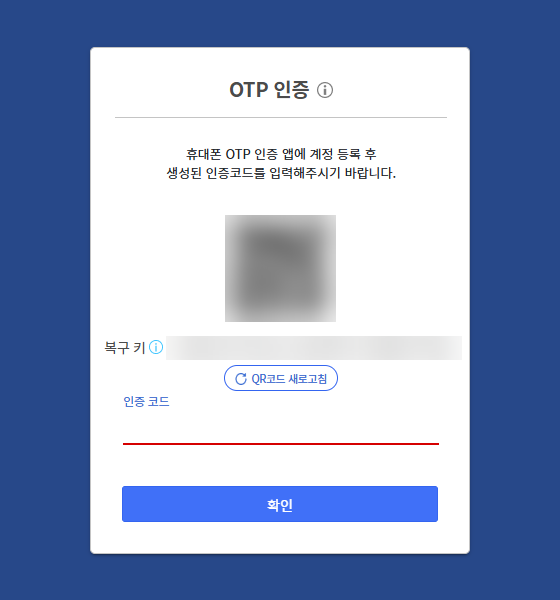
Registration Method:
- Install the OTP authentication app on your mobile phone.
- Select Add Account (Scan QR Code) in the authentication app, and scan the QR code on the screen.
- If you cannot scan the QR code, select "Enter Key" in the authentication app and follow the screen'srecovery keyEnter.
- the 6-digit authentication code displayed in the authentication appauthentication codeEnter in the cell.
확인Click.- After registration is complete, you will be logged in. If it is your first time logging in with this account, a password change screen may be displayed next.
Screen Configuration:
| item | Description |
|---|---|
| QR code | Scan with the authentication app to register your account. |
| recovery key | This is the key to enter directly into the authentication app when you cannot scan the QR code. Do not share it with others. |
| Refresh QR Code | Reloading the QR code. If you refreshed, please register with the newly displayed QR code on the screen. |
| authentication code | Enter the 6-digit number displayed in the authentication app. |
⚠️ The authentication code changes every 30 seconds. If the code has changed while you are entering it, please enter the newly displayed code in the app.
⚠️ If you only receive the QR code and do not enter the authentication code, the registration will not be completed. The registration screen will be displayed again during the next login.
3. Logging in with OTP
After registering the OTP, only the screen for entering the authentication code will be displayed after entering the ID and password.
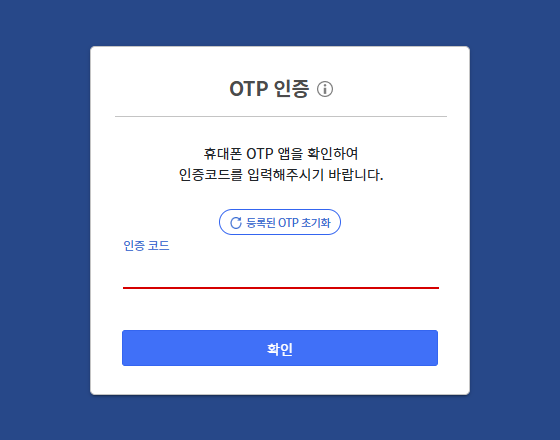
Login Method:
- Enter your ID and password.
- In the "OTP Authentication" screen, open the mobile authentication app and check the 6-digit authentication code displayed on the Security365 account.
- authentication codeEnter in the box and
확인Click.
💡 If you have multiple accounts in the authentication app, make sure you entered the code for the Security365 account.
4. When OTP authentication cannot be performed
If you change your mobile phone or delete the authentication app, you will not be able to check the existing authentication codes and log in. In this case, you need to reset the registered OTP and register it again.
| Method | Description |
|---|---|
| Direct Initialization | "OTP Authentication" screen's등록된 OTP 초기화Click to complete email verification and then reset. You should be able to receive an email at your account email. |
| Request to the administrator | If you cannot receive the email or find it difficult to reset it directly, please request OTP reset from your company administrator. |
If you have requested initialization from the administrator:
- Notify the administrator of the reasons for being unable to perform OTP authentication (such as phone replacement, deletion of the authentication app, etc.) and request initialization.
- When the administrator informs that the initialization is complete, you can log in again. No separate email will be sent regarding the initialization notice.
- When you enter your ID and password, the OTP registration screen will be displayed.2. Registering OTP for the First TimeRe-register in order.
💡 If you reset, the Security365 account registered with the authentication app can no longer be used. To avoid confusion, please delete the previous entries from the authentication app.
⚠️ If you plan to change your mobile phone, please inform the administrator in advance before resetting your existing phone.